
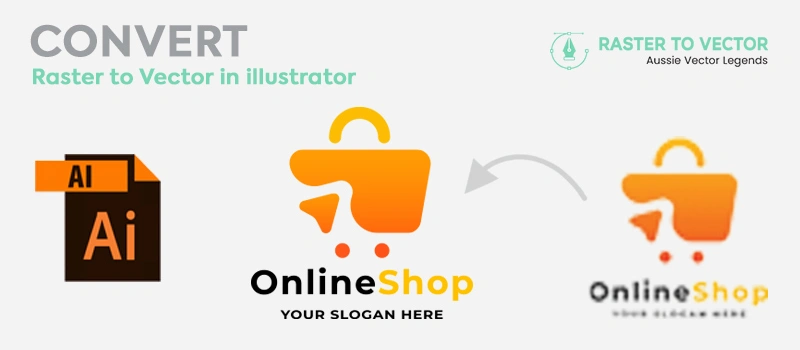
The raster image is suitable for digital screens. For logos, banners, and business cards, we need images made of shapes so that they don’t lose their resolution. Vector graphics are needed for those designs.
So, how to convert raster to vector in Illustrator? In Illustrator, you can use the shape tools and pen tools to trace a raster image for vector conversion. The combined use of shape and path makes a perfect vector image.
How to Convert Raster to Vector in Illustrator?
- Open Image In Illustrator
- Duplicate the Raster Image
- Pick a Suitable Shape Tool
- Work On Other Part Of The Logo
- Apply Shape Builder
- Tracing the other component
- Match The Color
- Save File
Open Image In Illustrator
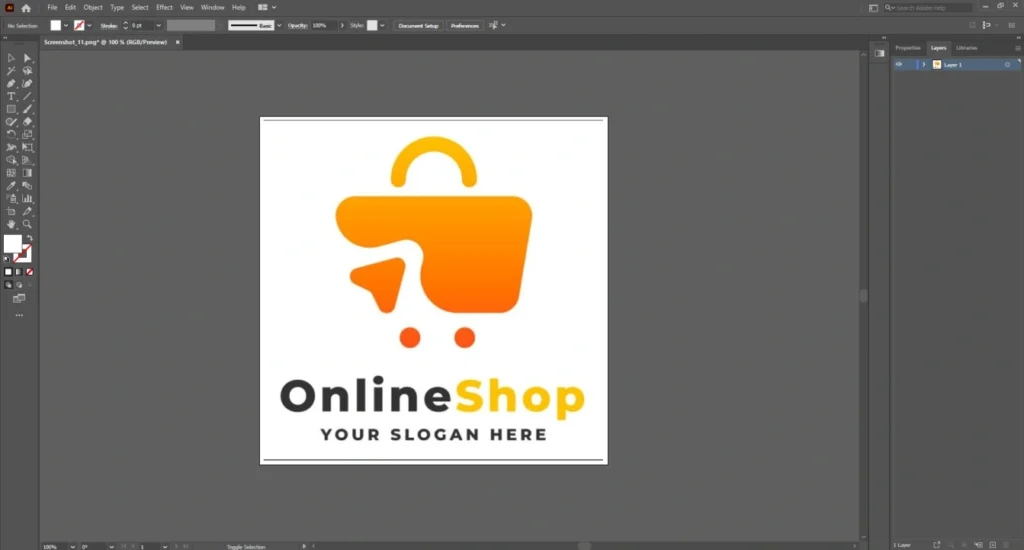
Open the image in Illustrator to start the vector conversion process. By following this tutorial, you can convert any raster logo to vector.
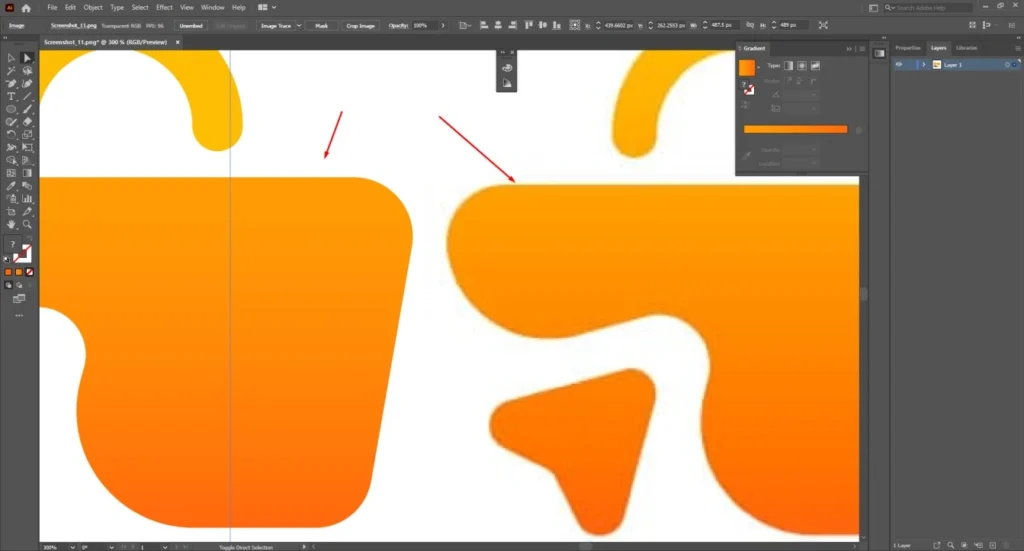
This is the closer view of the logo. There are so many visible edges.
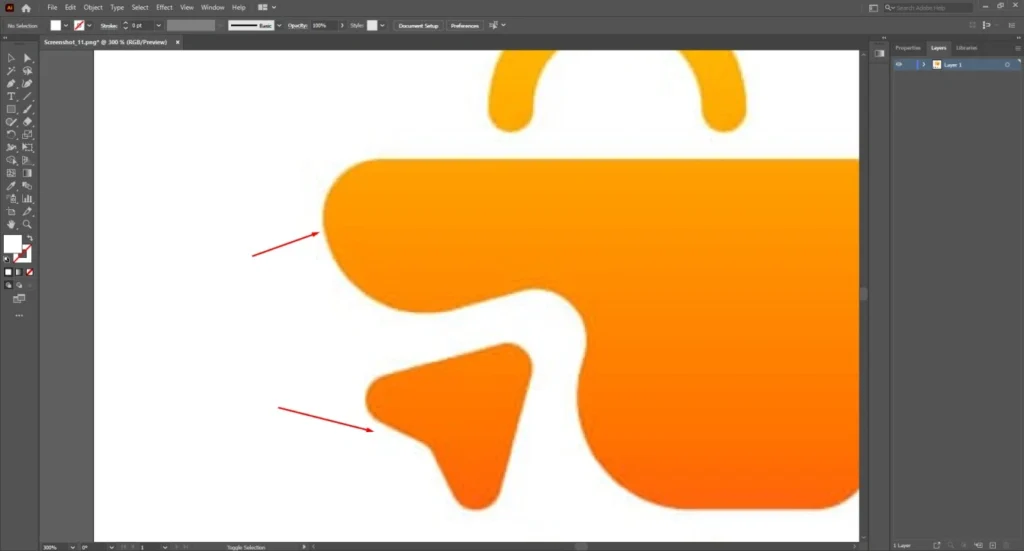
The logo is looking blurry. In this form, this logo isn’t suitable for use.
Duplicate the Raster Image
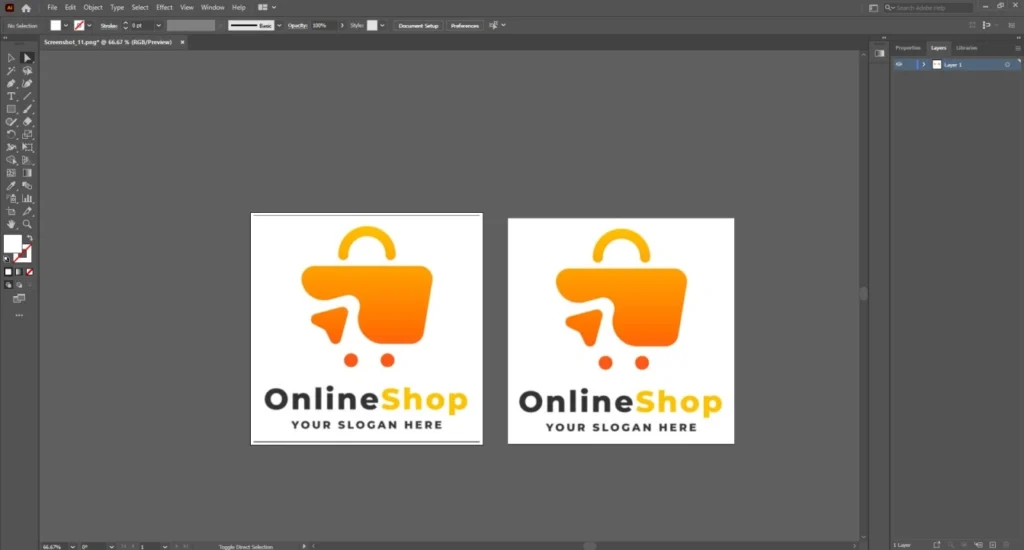
Hold the ALT key and click on the image to duplicate the raster image. The 2nd one is for reference while tracing the image. Place it side by side for a better view.
Pick a Suitable Shape Tool
Now, we have to pick a suitable shape tool to trace the object in the image. For this logo, we are going to pick the rectangle tool. Then use the selection tool to change the dimensions of the rectangle according to the object.
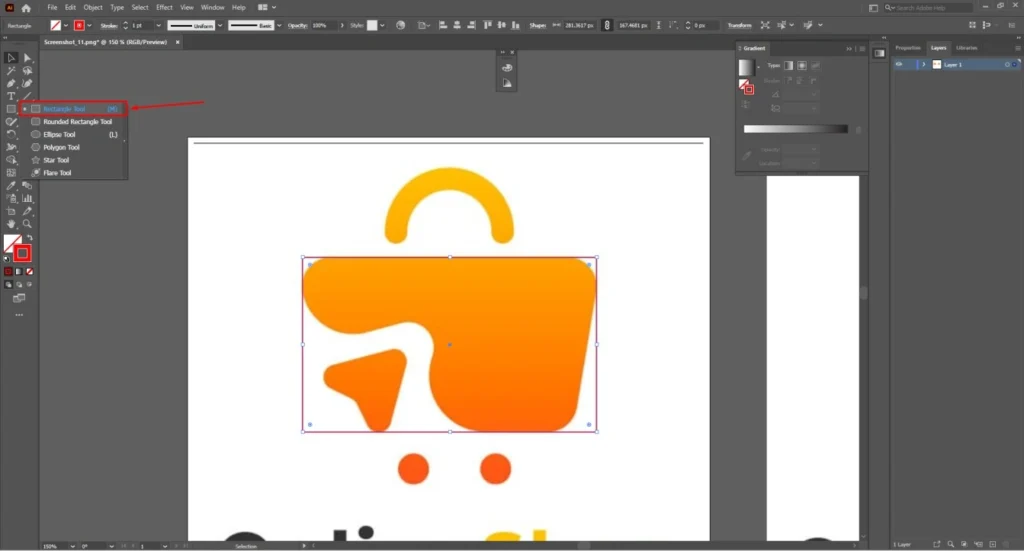
After that, click on the free transform options and select the perspective tool to customize the rectangle according to the logo shape.
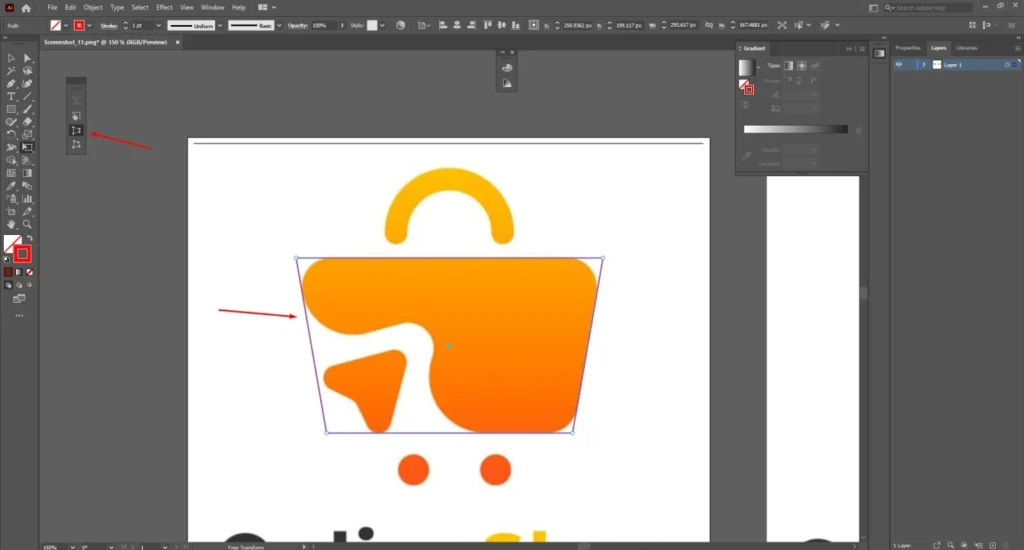
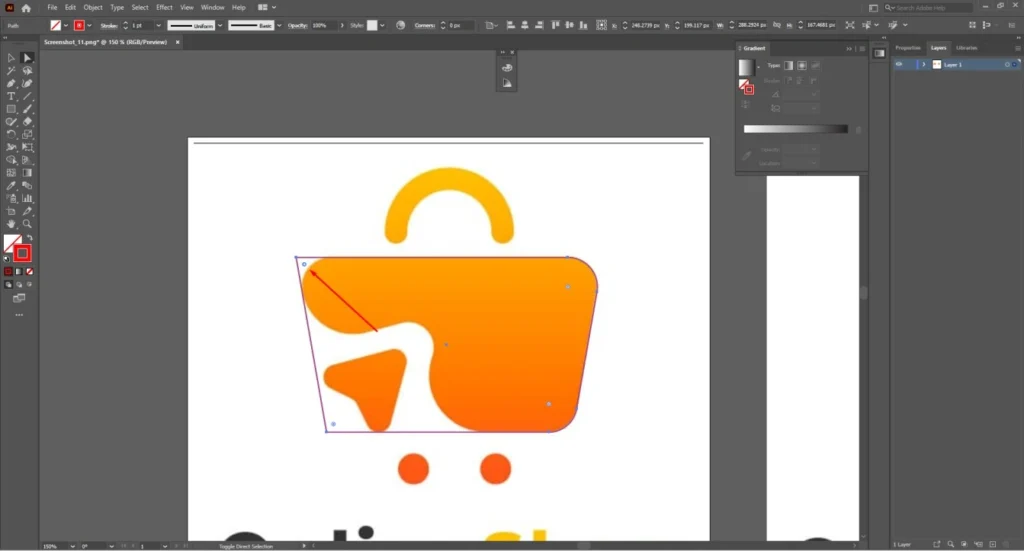
After that, we have to use the direct selection tool to make the corner rounded.
Work On Other Part of The Logo
There is another triangle-like shape in the logo. So, we have to pick the polygonal tool and press the down key to bring up the triangle shape.

Now, again select the direct selection tool and make the corner of the triangle rounded.
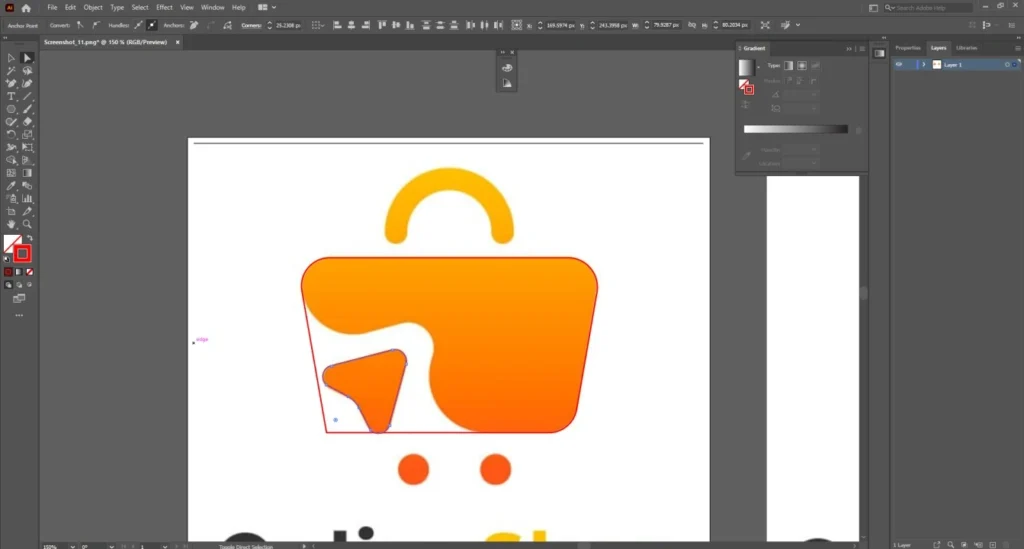
At this point, you have to hold the ALT key once again and make a duplicate of the triangle in this form.
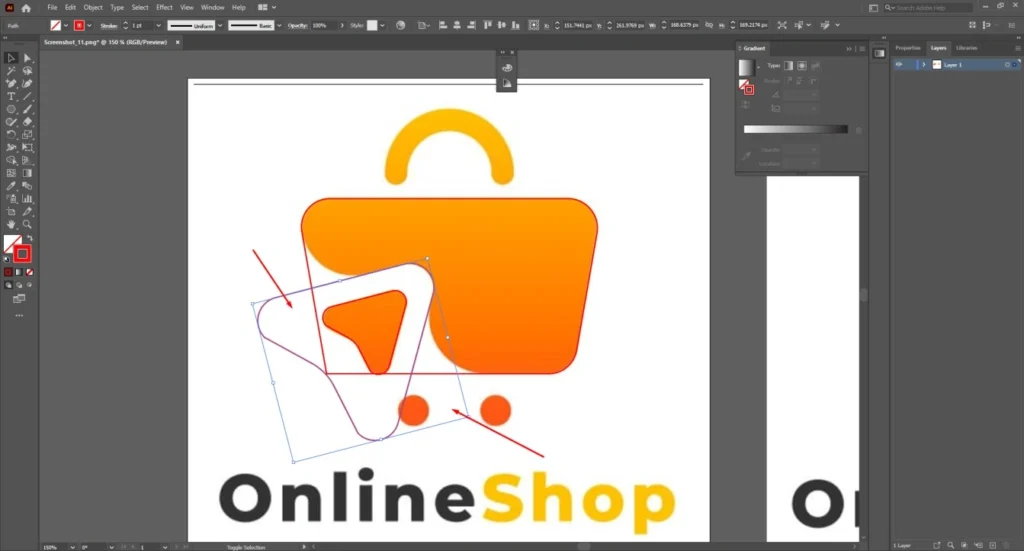
Apply Shape Builder
To customize the shape, pick the shape builder tool from the left toolbar and select the entire shape. Hold the ALT key and drag on the additional portion to erase it. After cleaning up, use the direct selection tool to make the corner rounded. Just like that.
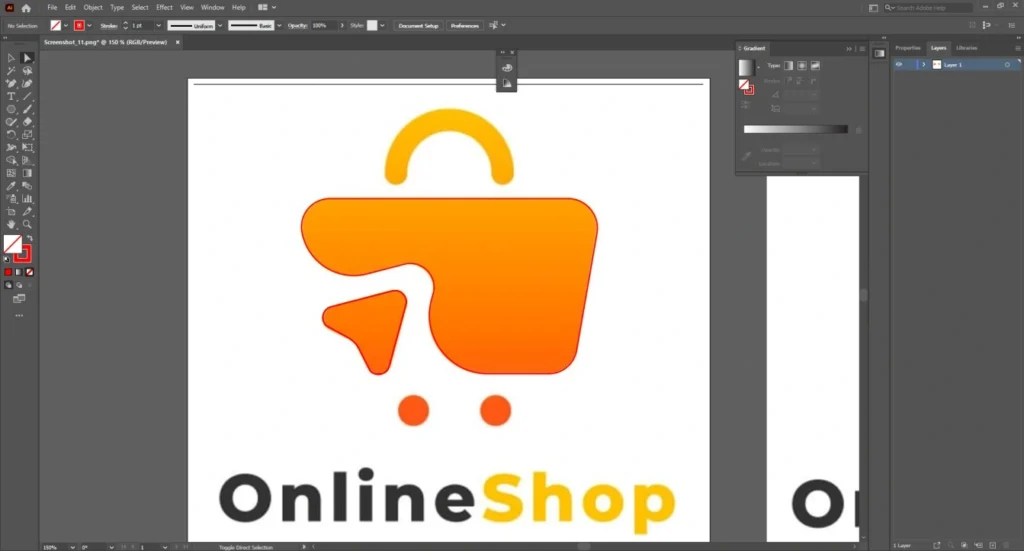
Drawing the Other Component
For the half-circle sign on the top, we are going to pick the Ellipse tool and create a circle like that one.
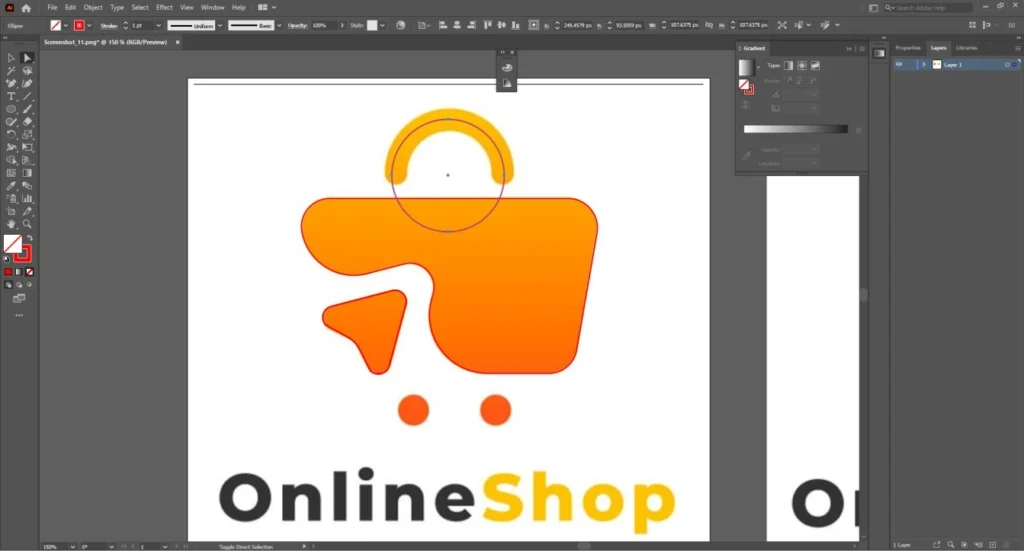
Click on the anchor point of the circle using the direct selection tool. Then, press the delete key. It will make the circle half. After that, increase the stroke of the rectangle and make it like the sample. Then, go to the object option from the top and select “Expand”.
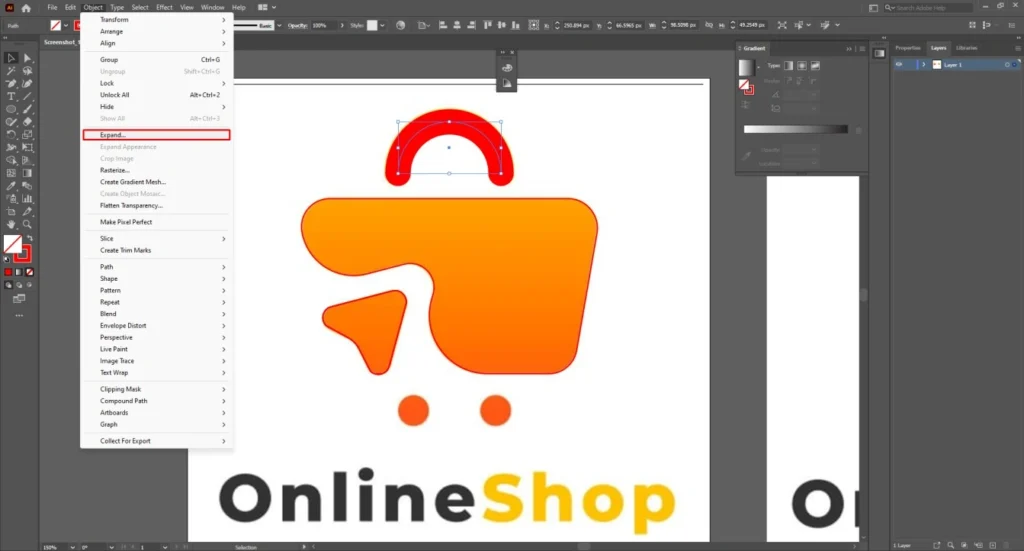
Draw two more small circles below to change raster to vector.
Match The Color
Now, we just need to match the color of our shape with the raster logo color. Select the rectangle and triangle shapes to apply a gradient to them. Pick the gradient tool from the left side. After that, select those two colors from the raster image.
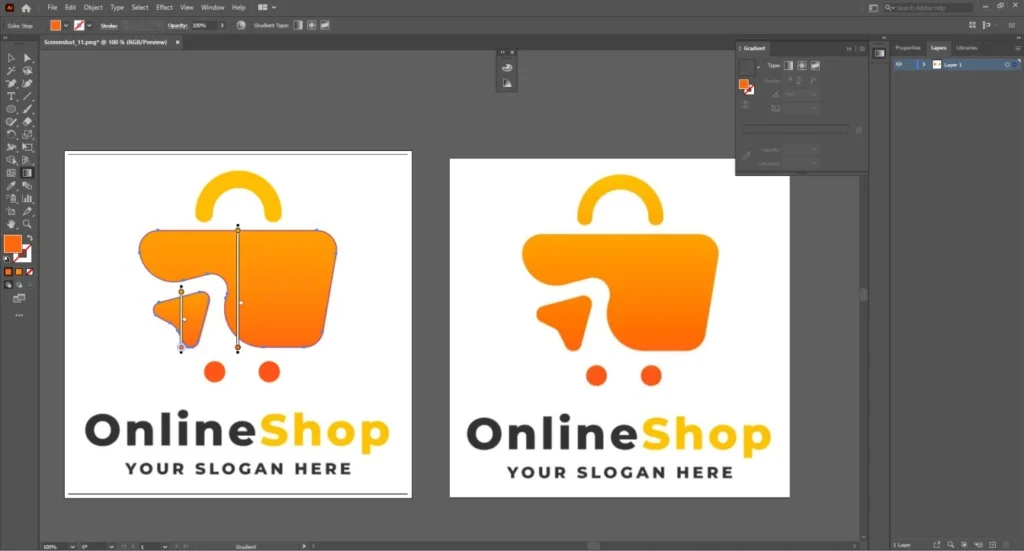
Finally, you just need to take a similar font. Write the text and create an outline for the text. That’s it.
Save File
Go to the file option from the top and save the file as you need.
Raster to Vector Comparison
This is the final look after the vector conversion.
Now, we have the logo in high-quality vector form. It won’t lose its resolution after scaling up. You can use this vector logo on any platform without quality loss.
Things to Consider to Convert Raster to Vector in Illustrator
- Not all images convert the same way. You have to pick the shape tool according to the object of your raster image.
- Use the color picker tool to match the color accurately with the sample image. Do the same thing for the gradient color.
- If you cannot find the proper shape for the object, the pen tool is the best option to trace the object.
Sum Up
Converting a raster to a vector in Illustrator is not an automated process. You have to recreate the shape manually for accurate results. It will take some time to trace the raster image.
If you want the perfect result, you can hire a professional raster to vector Conversion Company. Vector files stay sharp at any size. They are ready for print, web, and branding use. Hopefully, this article will help you to do that by using proper vector images.
FAQ’s
Is PNG or vector better?
PNG is good for digital use. It has limited resolution. When you resize a PNG, it loses quality. A vector file does not lose its resolution at any size. For printing, logos, and large formats, vector is always the best choice.
How to vectorize a picture?
To vectorize a picture, you first open the image in Adobe Illustrator. Then you use the Image Trace feature to convert pixels into paths. Also, you can use the pen tool for manual tracing.
Can you vectorize in Illustrator?
Yes, Adobe Illustrator is the best tool for vectorizing images. It allows you to convert raster files like JPG and PNG into editable vector paths using a manual tracing method.
How do I turn my image into a vector?
You can turn your image into a vector by importing it into Illustrator. Then, you have to apply image Trace and expand the result. After that, you refine the paths, adjust colors, and remove unnecessary points.
Can Illustrator convert JPG to SVG?
Yes, Illustrator can convert a JPG into SVG format. After vectorizing the JPG, you can save the file as SVG.