
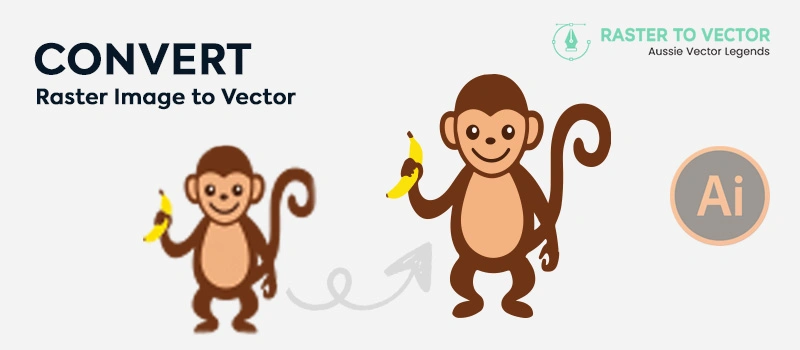
Raster images are made of pixels. When we try to scale the image, it loses its resolution. It looks blurry and pixelated after zooming in. Also, it’s not suitable for printing. Images that we capture with mobile phones are produced in raster form.
Using vector-based editing software like Adobe Illustrator, we can convert raster images into vectors. There are two popular methods of doing that. One is manual vector tracing, and the other is image trace feature in Illustrator.
The 2nd one is the easiest method of how to convert a raster image to a vector.
How to Convert Raster Image to Vector Using Image Trace
1st Step: Open the Raster Image in Illustrator
2nd Step: Apply Image Trace
3rd Step: Expand To Get Tracing Result
4th Step: Make The Background Transparent
5th Step: Save the Vector Image in a Suitable Format
1st Step: Open the Raster Image in Illustrator
We have to open the raster image in Illustrator that we are going to convert. For this tutorial, we are going to start the image below image.
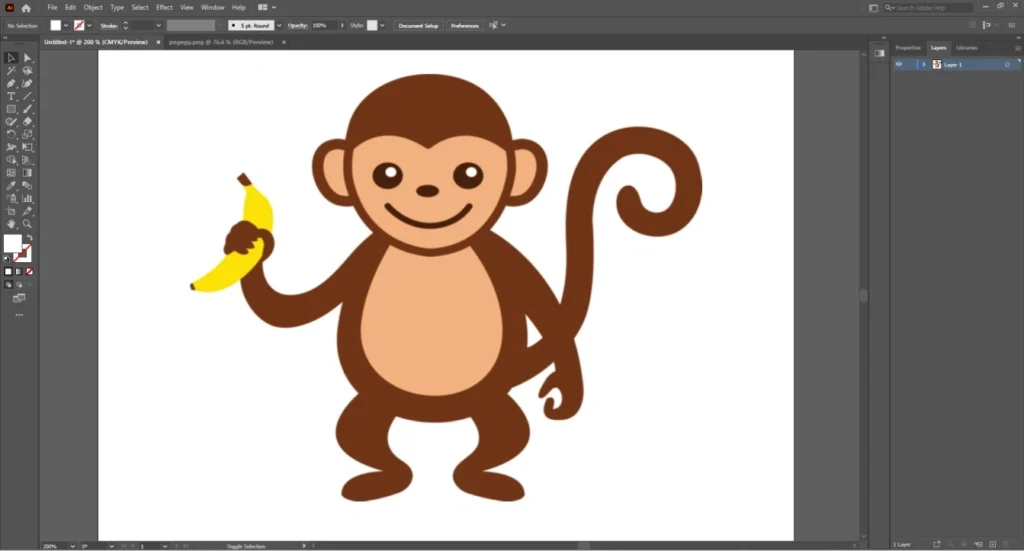
As you can see, the raster image is looking pixelated.
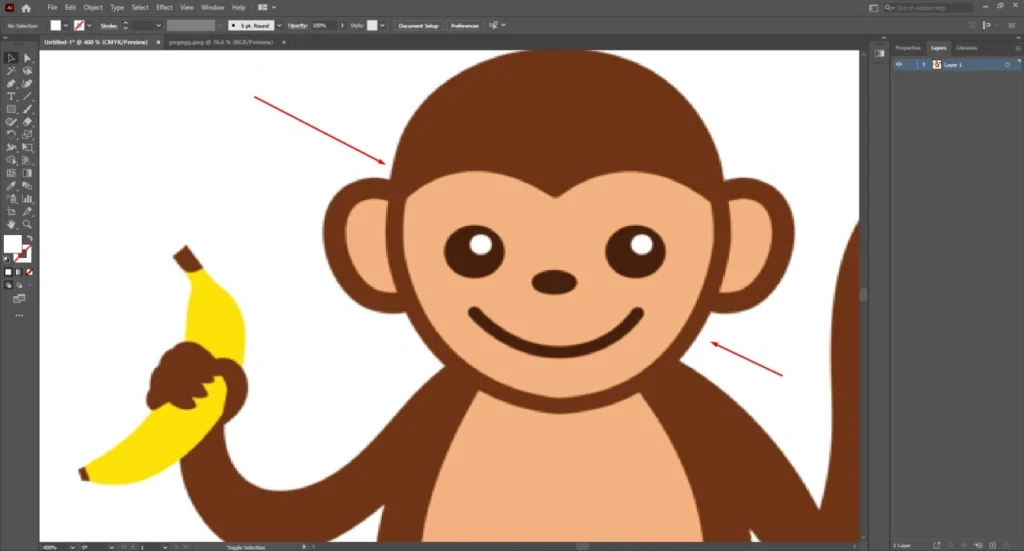
Now, we are going to apply the vector tracing method to convert it into a vector.
2nd Step: Apply Image Trace
Pick the selection tool from the left side toolbar and click on the image. From the top, you will see the image trace option. Click on the default option and choose “Low Fidelity Photo” from the box. Here you go.
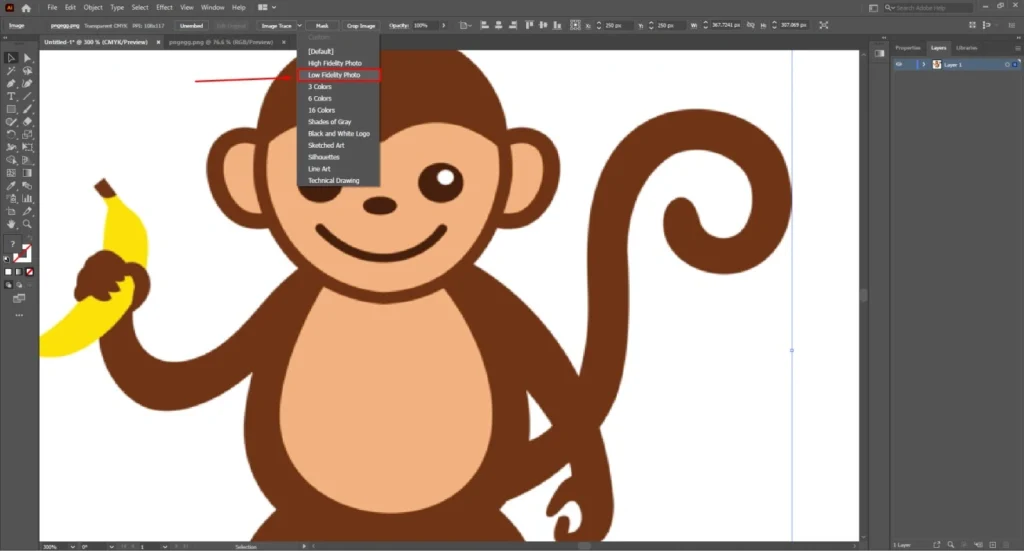
It will change the image resolution instantly. There won’t be any pixelated edges. Here you can see the sample.
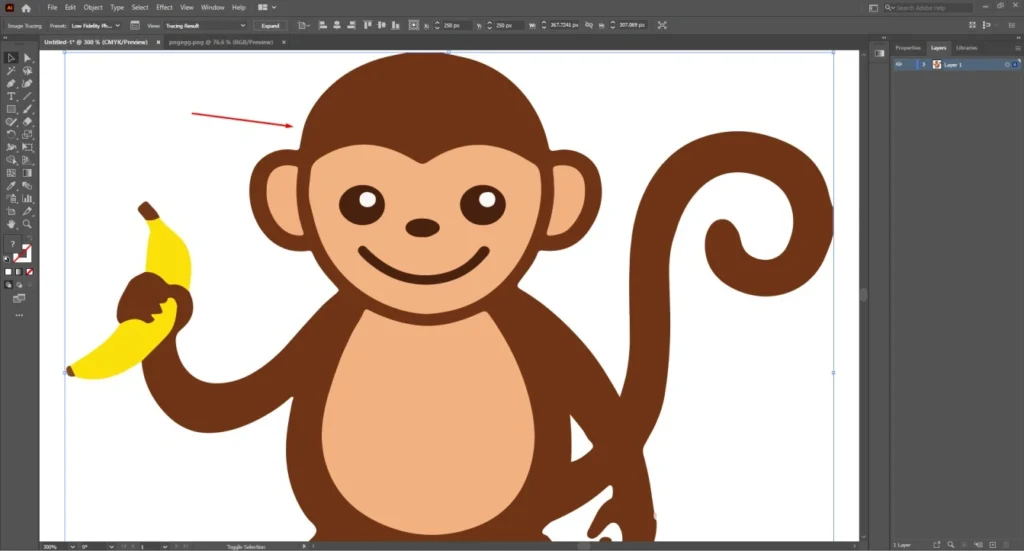
3rd Step: Expand To Get Tracing Result
To get the tracing result, we have to click on the expand option at the top. Then, you will get the image in traced form.
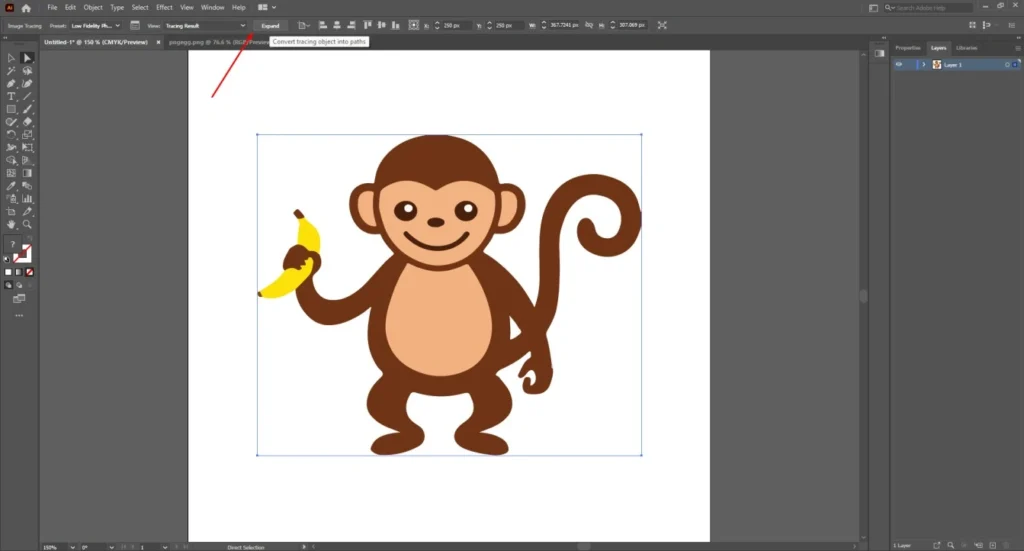
At this stage, click on the direct selection tool and select the image. It will show the anchor points throughout the image.
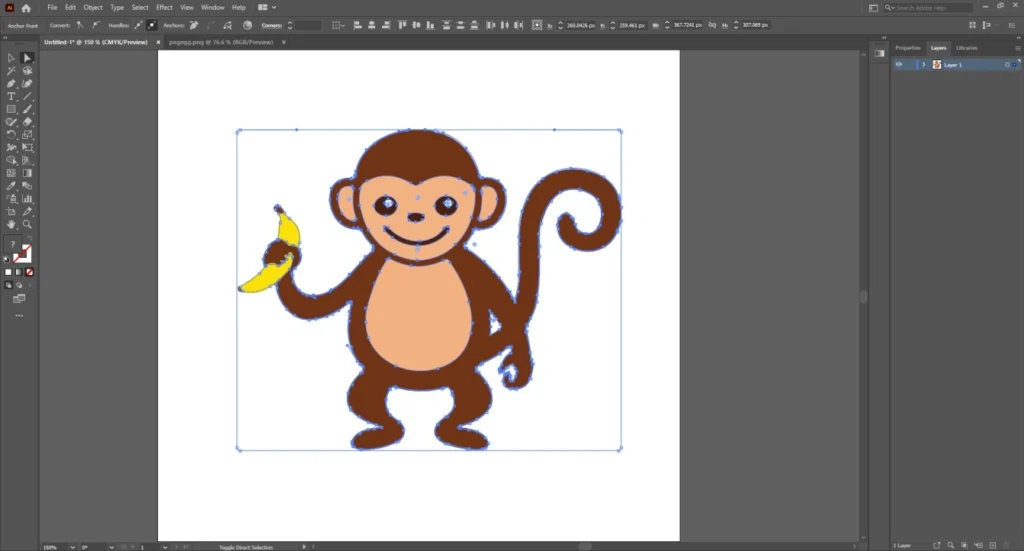
If you need any further correction, you can do that by clicking on the anchor points and changing the paths. Now, we need to bring the image in transparent form.
4th Step: Make The Background Transparent
You have to go to the window option from the top and enable the transparency grid option. You will get a transparent view of the canvas.
After that, click on the white background area that you want to remove and press delete.
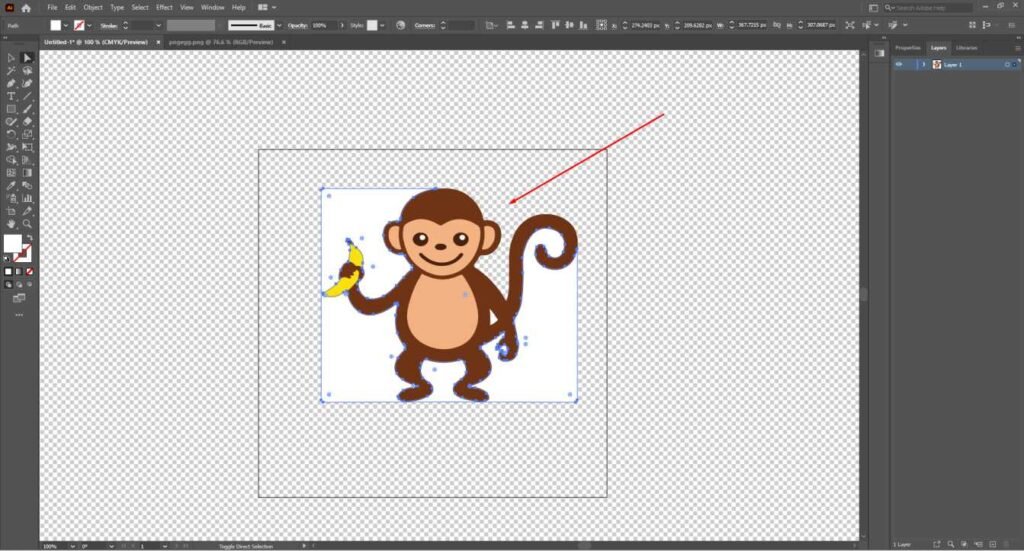
It will make those areas transparent. In a similar way, you have to click on different parts of the background and press delete. Gradually, it will make the entire background transparent. Here’s the result.
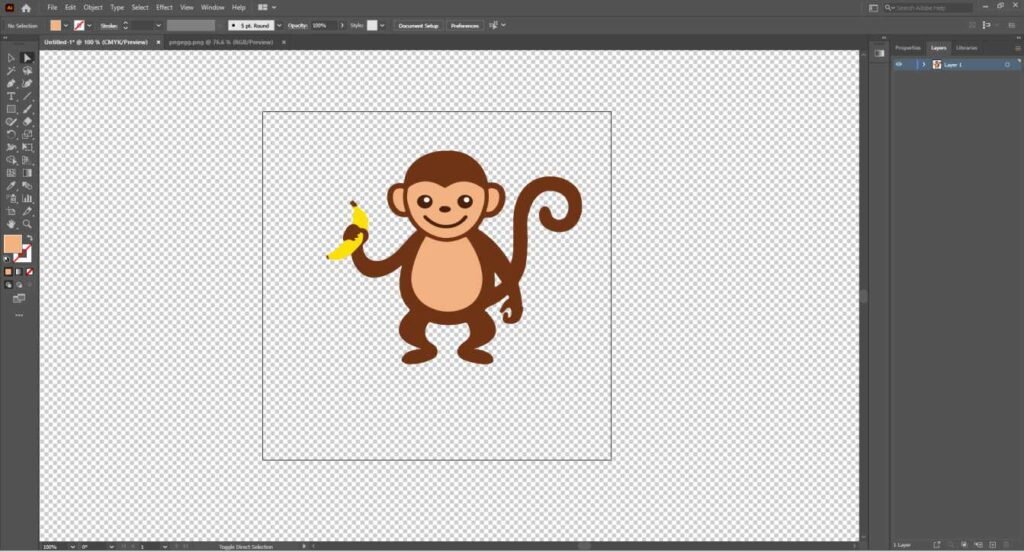
5th Step: Save the Vector Image in a Suitable Format
Finally, the image is converted into a high-resolution vector image. You can follow this method to convert from raster to vector for any image. Now, we need to save the image in vector image format. Go to the file option from the top and select the Save As option.
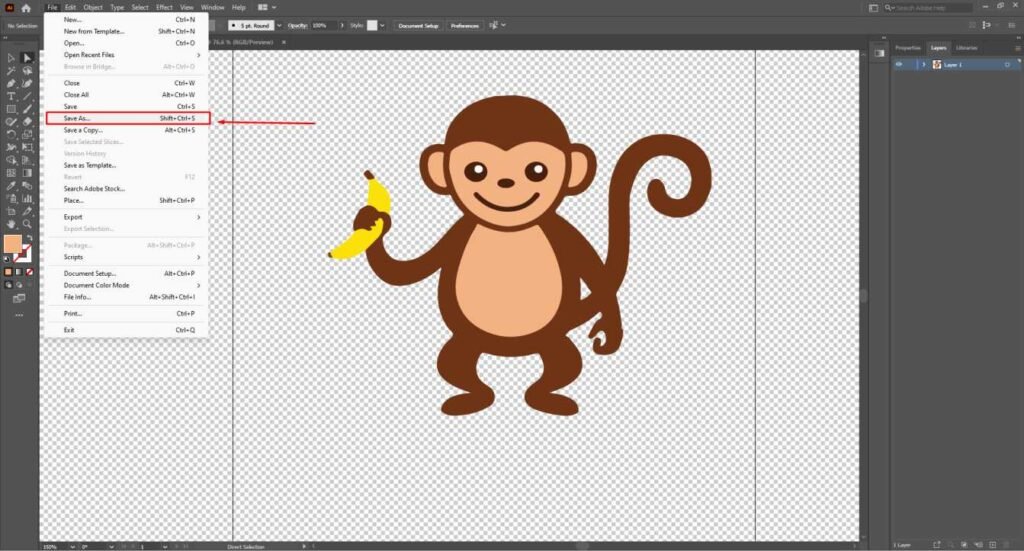
EPS and SVG are two popular vector image formats. You can also save the image as an AI format if you want to customize the image later on.
Raster to Vector Conversion Results
Here’s the comparison between the pixelated image and the high-quality vector image.
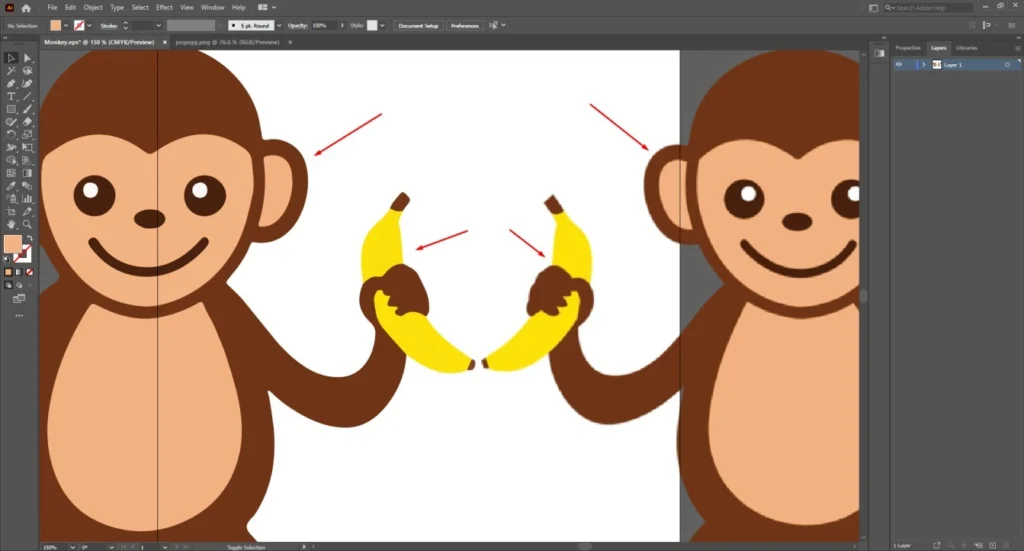
Before After Comparison Screenshot
Hopefully, you can easily change raster to vector from now on.
3 Essential Things To Keep in Mind to convert raster to vector
- Don’t rely on the initial tracing result after applying a low-fidelity image. You have to customize the paths to enhance the accuracy.
- You may face difficulties while removing the background. In that case, use the shape builder tool and subtract the background by pressing the ALT key.
- If you find that the image is getting divided into pieces after tracing, you need to group the object. Select the entire object and press the right mouse button. Then, choose the group option.
Sum Up
When you’re confused about how to convert raster image to vector, Adobe Illustrator is the best possible option for you. The image tracing option gives you the convenient option to trace an image automatically. The quality is also fabulous.
If you have a complex image with too many colors and shapes, the image trace option might not provide the best result. In that case, you can outsource the image to a professional raster-to-vector conversion company for the best output.
FAQ’s
Which is the best software for raster to vector conversion?
Adobe Illustrator is the industry-standard application for raster-to-vector conversion. It gives you the highest control to convert pixelated images into high-quality vectors.
What is the free software for raster to vector?
SVGMaker, VectorMagic, SVGConverter, and Vectorizer AI are some of the best free software for raster to vector conversion.
How to convert a raster image to vector image in Photoshop?
You have to trace the image using the pen tool in Photoshop. After that, choose the shape option from the top instead of path. It will convert the selected area into a vector.
What is the process of converting raster to vector called?
The process of converting raster-to-vector is called image tracing. Some people also call it vector conversion.
Can ChatGPT make vector images?
ChatGPT can make vector images for Icons, Logos, Simple illustrations, Diagrams, and UI elements. But it can not make EPS or AI files. It can not make fully layered vector documents.
Can I vectorize an image on my phone?
Using online tools like Vectorizer and Autotracer, you can vectorize an image on your phone. But there are some limitations with the customization. To do it professionally, you will need an industry-standard application such as Adobe Illustrator.
Can AI convert an image to vector?
Yes, AI can convert an image to vector, but there are limitations. AI provides poor results for Faces, Complex textures, Shadows & gradients, and Fine detail. For professional use, you need the manual touch.